Imagine you set up an AI model for your support team. You want everyone in support to use it, but only the people maintaining it should change its settings. Later, the sales team wants access too.
You should not have to copy the same setup for every team or hand out the password-like key that connects to your AI provider.
DeltaLLM’s creator sharing gives you a clearer way to handle this. A resource has an owner, and that owner can share it with selected teams or organizations. You can keep something private while you work on it, then share it when it is ready.
What can you share?
The same Sharing & Access controls are used across five kinds of resources:
- Models: the AI models people call through DeltaLLM.
- Model groups: several model setups behind one name, so your app can use a group rather than choose each one itself.
- Prompt templates: reusable instructions, such as how your support assistant should answer.
- MCP servers: connections to tools an AI assistant can use.
- Named credentials: saved provider connection details, including secret keys. Sharing permission to use a credential does not reveal its secret value.
You do not need to learn a different sharing system for each one. The basic questions stay the same: who needs access, and what should they be allowed to do?
Choose who gets access
Keep the audience as small as it needs to be:
- Private: keep the resource for yourself while you prepare or test it.
- Teams: share with one or more teams that need it.
- Organizations: share with one or more organizations, rather than adding each team separately.
- Public: a platform-wide read-access option that only a platform administrator can enable. This is not the same as publishing a provider key on the internet.
You can share with more than one team or organization. If someone gets access in more than one way, their strongest matching permission applies. For example, a person with organization-wide Read access and team-level Read / Write access can edit.
Decide who can use it and who can change it
There are three basic levels of responsibility:
- Reader: can view and use or reference the resource where applicable, without changing its setup.
- Editor: can also change the resource’s settings. In the sharing controls, this is shown as Read / Write.
- Owner: manages the resource and decides who it is shared with. Creating a resource makes you its Owner; giving someone editing access does not make them its Owner.
For most teammates, start with Read. Give Read / Write to the team responsible for maintaining the setup. Administrators can still step in to manage the system, with those actions recorded.
A simple example: share a model group
Suppose you have a model group that support uses for answering customer questions. You want another organization to use it, but not change its settings.
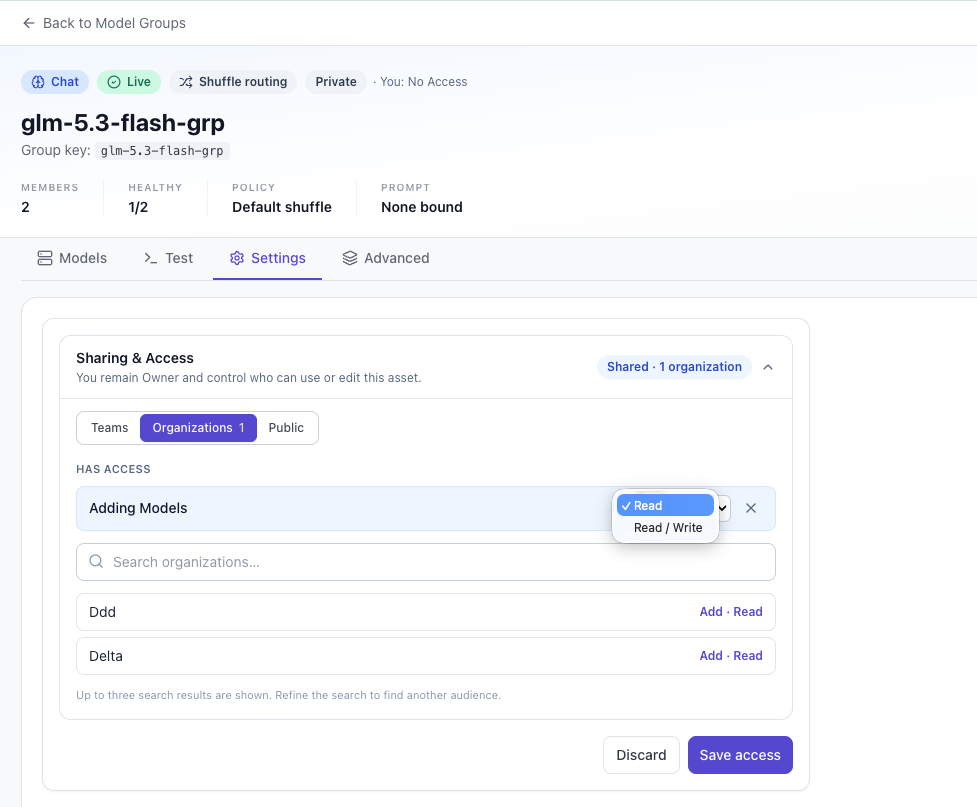
This screenshot illustrates the sharing controls, not confirmation that access has been granted. Its header still shows Private and You: No Access; the selected audience alone does not confirm who can use the group. Sharing changes take effect after Save access. To manage sharing, you must be the resource’s Owner or an authorized administrator.
1. Open Sharing & Access
In the model group’s Settings tab, expand Sharing & Access. This is where you choose the people who should be able to use or edit it.
2. Pick the audience
Select Teams or Organizations, search for the audience you want, and add it. In the screenshot, the Organizations tab is open and one organization has been added to the access list.
3. Choose the permission and save
Choose Read if they only need to use the group. Choose Read / Write if they should help maintain it. Then select Save access to apply your changes, or Discard to leave the existing access unchanged.
When another team needs the same group, add that team to its access list instead of creating a separate copy.
Share the model, not the secret key
An AI provider’s API key is like a password for its service. Your teammates usually need to use the model, not know that password.
A model’s Owner can let it use a private provider credential behind the scenes, without sharing the credential itself. People using the model do not receive access to that credential or its private details. Even an Editor can keep the existing owner-managed connection without seeing the secret.
The credential’s Owner can revoke that connection. If the model’s credential is missing or revoked, that model cannot continue using it.
How this fits with service tiers
Sharing and service tiers do different jobs. Service tiers define the model packages your platform administrator offers to an organization. Creator sharing controls access to resources that people create and own.
Platform-managed models remain governed by the organization’s tier. Creator-managed models have their own sharing policy, separate from that tier package; additional team or API-key restrictions can still limit access.
For the wider picture, read how service tiers work or the guide to organizations, teams, and access roles.
Start with one resource and one team
You do not need to reorganize your whole gateway to try this. Pick one resource you own, share it with one team using Read access, and check that the team can use it. Give editing access only to the people who need to maintain it.
That is the benefit: one shared setup, clear responsibility, and less need to pass secret keys around.