Why Put Deployments Behind a Model Group?
Calling a single provider deployment directly is simple, but it also makes that deployment your bottleneck. One provider can hit a rate limit, become slow, experience an outage, or cost more than another deployment that could serve the same workload.
A DeltaLLM Route Group gives your application one stable runtime target while the gateway chooses among several member deployments. This is especially useful when you run multiple DeltaLLM instances or multiple provider deployments and need one policy-driven way to distribute traffic between them. Your application keeps calling the same model group as traffic grows, while platform teams can change the members and routing policy centrally.
- Use multiple instances — spread traffic across separate gateway/provider instances, regions, credentials, or capacity pools.
- Apply a distribution policy — define weighted, priority, latency, cost, or rate-limit-aware behavior instead of hard-coding routing in every app.
- Fail over from a primary deployment to a standby when the primary is unavailable.
- Roll out gradually with weighted traffic, such as 90% stable and 10% canary.
- Keep application code stable while the deployment topology changes behind the group.
Built for Multiple Instances
The most important use case is not simply sending requests to two models. It is running multiple instances that can serve the same workload and putting a clear policy in front of them. For example, you might have one DeltaLLM instance in each region, separate provider credentials for independent quotas, or dedicated capacity for production and background workloads.
Without a model group, each application has to know which instance to call and how to react when that instance is busy. With a group, the application sends requests to one stable model key. DeltaLLM owns the selection policy and can distribute traffic across the available members without requiring an application release.
| Topology | Useful policy | Why it helps |
|---|---|---|
| Two or more equal instances | Simple shuffle or weighted | Distribute normal traffic and avoid a single instance becoming the bottleneck. |
| Primary plus standby instance | Priority-based or fallback | Keep a second instance ready for outages or maintenance. |
| Stable plus canary instance | Weighted | Move a controlled percentage of traffic before promoting the canary. |
| Regional instances | Latency-based or priority-based | Prefer a nearby instance while retaining another region for resilience. |
| Different provider capacity pools | Rate-limit-aware or cost-based | Use available quota or lower-cost capacity without changing the client. |
Route Groups in the DeltaLLM Admin UI
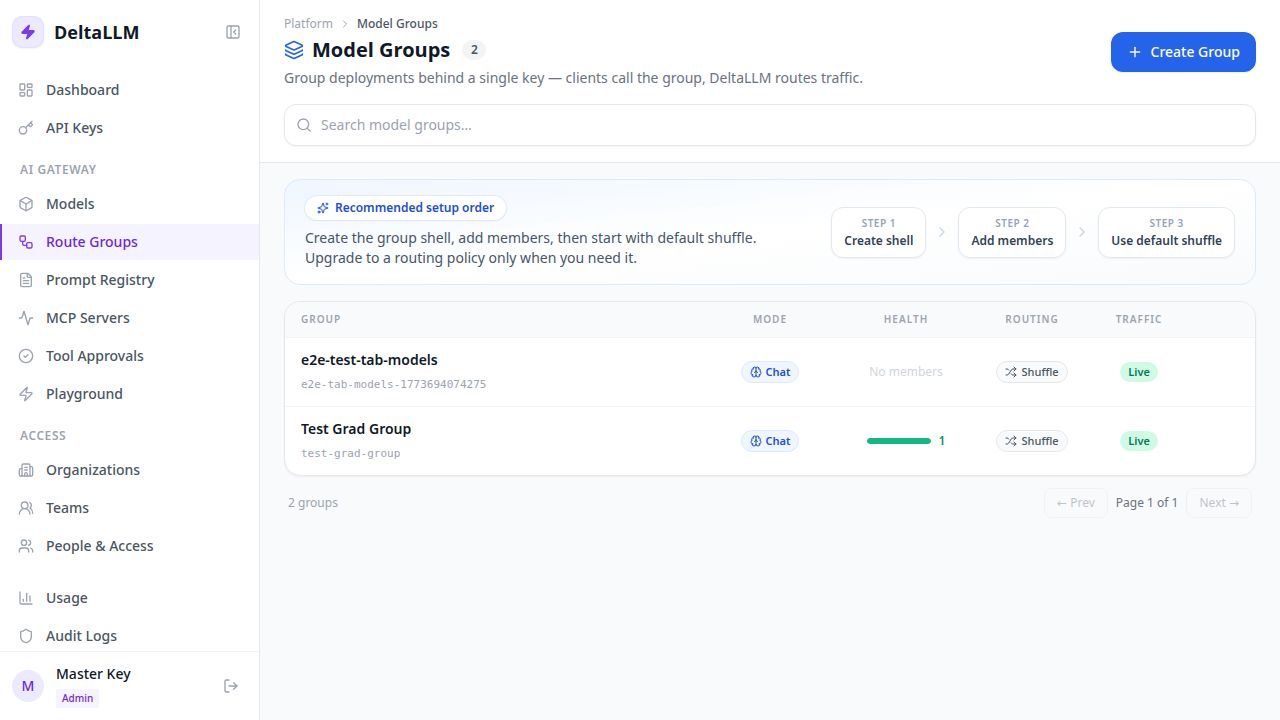
A group has its own stable key, display name, workload type, member deployments, live state, and optional routing policy. Groups are callable targets, so the same scope and access rules used for public model names can govern which organizations, teams, and keys may use them.
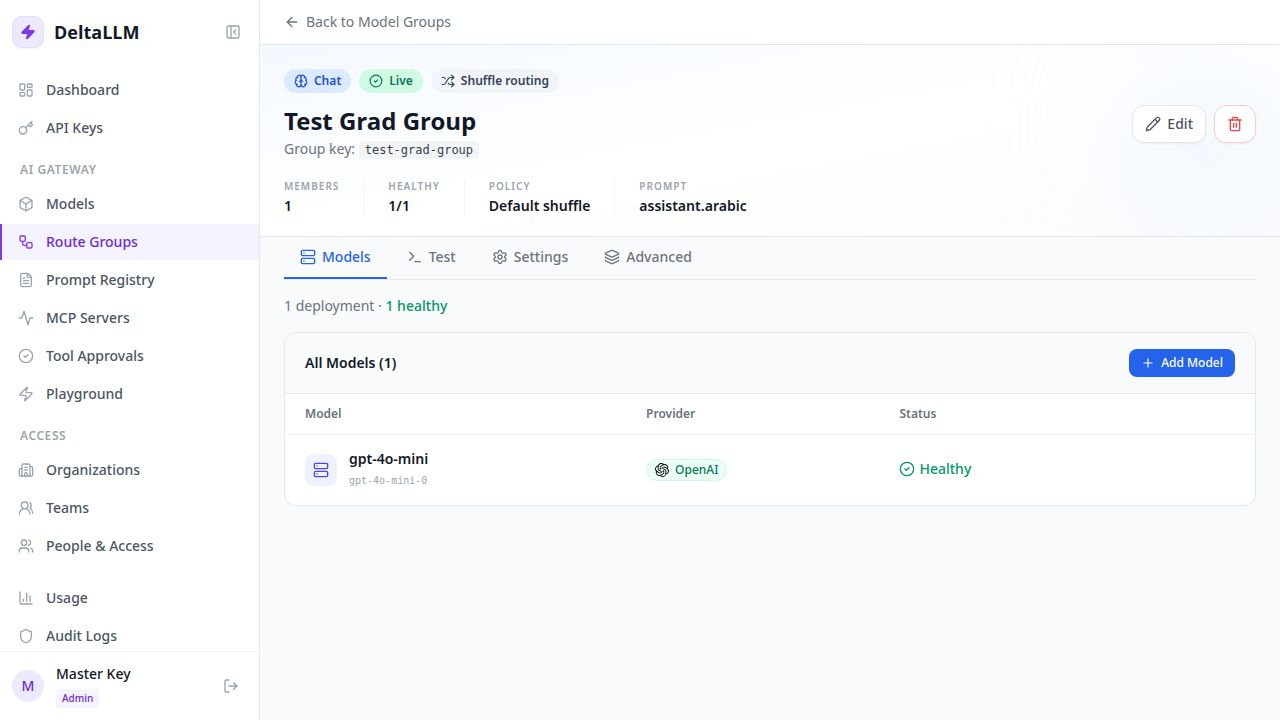
The detail page is where you manage the group itself: edit its metadata, add or remove member deployments, copy the generated usage example, bind a prompt, and inspect or publish routing changes.
Quick Setup: Create a Load-Balanced Group
For a first group, keep the policy simple. Start with the default behavior, confirm that traffic reaches each member, and only then add advanced routing rules.
Step 1: Create the group shell
Open Route Groups in the admin UI and create a group with a stable key and display name. Select the workload type, such as chat or embeddings. The group key is the name your clients will use, so choose a name that describes the workload rather than one provider-specific deployment.
Step 2: Add member deployments
Add two or more deployments that can serve the group's workload. These might be multiple DeltaLLM/provider instances in different regions, the same provider with separate credentials and quotas, or compatible deployments from different providers. Keep the model contract compatible across members so your client does not need to know which instance or deployment handled a request.
Step 3: Mark the group live and test it
Keep the default routing behavior while you validate the setup. Mark the group live, copy the usage example from the detail page, and send representative traffic through the group. Check deployment health and usage rather than assuming that a successful first request proves the distribution is correct.
Choose the Right Load-Balancing Strategy
The policy is what turns multiple instances into a useful service. DeltaLLM lets you choose how requests should be distributed instead of forcing every application to implement its own load-balancing logic. A route-group policy should stay small and explicit: choose one strategy, then override only the member weights, priorities, timeout, or retry behavior you actually need.
| Strategy | Best for | How it behaves |
|---|---|---|
| Simple shuffle | General distribution | Spreads requests across enabled members without introducing a complex policy. |
| Weighted | Capacity planning and canaries | Sends a controllable share of traffic to each member based on its weight. |
| Priority-based routing | Primary and standby deployments | Tries members in priority order, making the preferred deployment explicit. |
| Latency-based routing | Interactive applications | Prefers members that are currently responding faster. |
| Cost-based routing | Cost-sensitive workloads | Prefers the lower-cost eligible deployment. |
| Rate-limit-aware | Provider quota constraints | Considers available provider capacity and rate-limit pressure. |
Example: Weighted Traffic Splitting
Weighted routing is useful when two deployments can serve the same workload but have different capacity or when you want to introduce a canary gradually. A 9-to-1 split sends approximately 90% of eligible traffic to the primary and 10% to the canary.
{
  "mode": "weighted",
  "members": [
    { "deployment_id": "dep-primary", "weight": 9 },
    { "deployment_id": "dep-canary", "weight": 1 }
  ]
}
Use this pattern to test a new model, region, or provider without moving every request at once. When the canary is ready, change the policy in the UI, simulate the result, and publish the new version.
Example: Primary and Standby Failover
For a conservative availability policy, use ordered fallback. The primary receives traffic first; the standby is available when the primary cannot complete a request.
{
  "mode": "fallback",
  "members": [
    { "deployment_id": "dep-primary", "priority": 0 },
    { "deployment_id": "dep-standby", "priority": 1 }
  ]
}
Priority is also useful when deployments are not equivalent. For example, you can prefer a regional deployment and keep a second region as the next choice. Pair this with health checks and fallback-event monitoring so you know when the standby is carrying traffic.
Member Overrides Without Rebuilding Deployments
Member overrides let the group policy change runtime behavior without changing the underlying deployment definition:
- enabled — temporarily take a member out of rotation without deleting it.
- weight — change its share when using weighted routing.
- priority — control the order for priority-based or fallback routing.
This separation is useful operationally. A deployment can remain configured and healthy while a specific group pauses it, reduces its traffic, or uses it only as a standby.
Simulate, Publish, and Roll Back Safely
Advanced policies should not be edited directly against live traffic. Use the draft workflow to prepare a change, inspect the selection summary, simulate the policy, and publish only after the result matches your intent.
- Weighted split — confirm the expected traffic proportions.
- Fallback order — verify which deployment is primary and which is standby.
- Prompt-derived routing — confirm that prompt-bound behavior selects the expected members.
conditional or adaptive as live runtime modes yet. The current runtime supports the documented strategies and the UI shortcuts that map weighted and fallback policies to their active strategies.Prompt Binding at the Group Level
A prompt belongs on the route group when the group determines where that prompt is applied. Prompt Registry owns the prompt template and its versions; the group decides which prompt is active for live traffic. This keeps the model target and its prompt behavior together while the application continues calling one stable group key.
How to Operate a Group in Production
Load balancing is not finished when the group is created. The point of running multiple instances is to make capacity and failure handling explicit. After a rollout, monitor deployment health, request latency, failure rates, spend, and fallback events. DeltaLLM exposes deployment health and fallback-event endpoints for this purpose, while the admin UI gives you the operational view.
- Start with two compatible instances or deployments and a simple strategy.
- Use weighted routing to distribute load across multiple instances or to run a controlled canary.
- Use priority-based routing when availability matters more than distribution.
- Use latency, cost, or rate-limit-aware routing only when that signal is part of the actual requirement.
- Simulate policy changes before publishing them.
- Review fallback events after every provider or deployment change.
Getting Started
If DeltaLLM is already running, open the Route Groupssection in the admin UI and create a group around one workload. Add multiple compatible instances or deployments, keep the default policy for the first test, and use the generated call example to verify traffic. Then graduate to weighted or fallback routing when you have a clear operational reason.
See the Route Groups documentation for the complete admin workflow, policy fields, simulation behavior, and related API surface.