When one team uses an LLM, access control is simple — everyone shares one API key. When ten teams use LLMs, sharing a key becomes a liability. One team's runaway script burns through the budget. An intern's key leaks on GitHub and exposes every model you've configured. There's no way to tell who made which request.
DeltaLLM solves this with a three-level access control system: platform, organization, and team. Each level has its own roles, budgets, and rate limits — so you can share LLM infrastructure safely across your entire company.
The Three Levels
| Level | What it controls | Example |
|---|---|---|
| Platform | The entire gateway instance | Platform admins manage all orgs, models, and global settings |
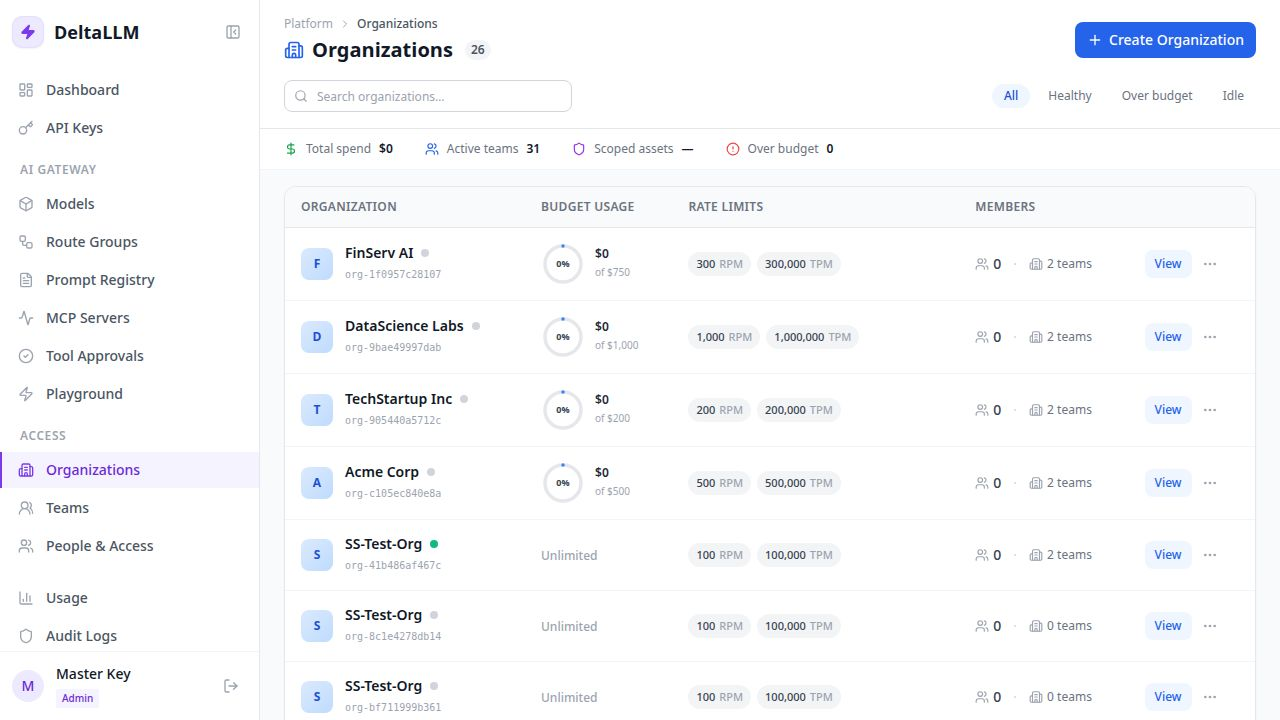
| Organization | A tenant or business unit | "Acme Corp" has its own budget, users, and teams |
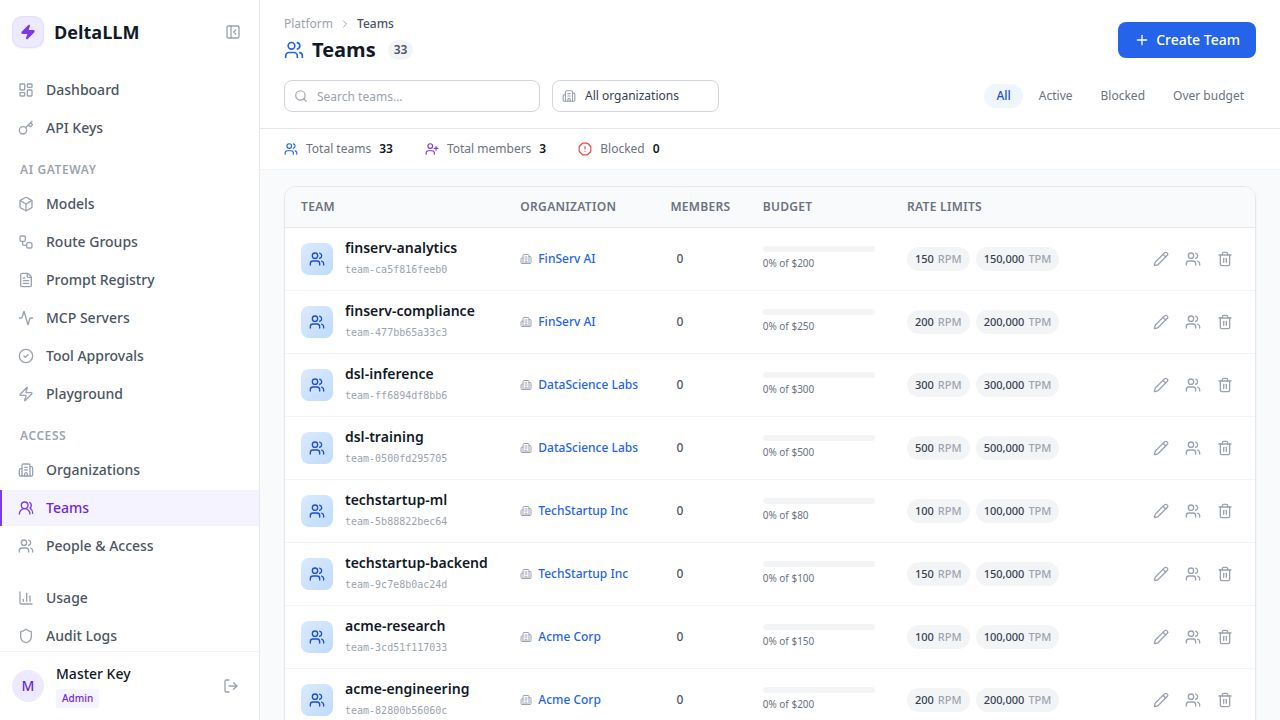
| Team | A working group within an org | "Backend Team" has specific rate limits and model access |
Roles at Every Level
Platform roles
There are two platform-wide roles:
- Platform Admin — full access to everything. Manages orgs, models, guardrails, and global settings.
- Org User — access limited to assigned organizations. Can't see or manage other orgs.
Organization roles
| Role | What they can do |
|---|---|
| Org Owner | Full control over the organization — teams, users, keys, budgets, everything |
| Org Admin | Manage teams, users, and API keys within the org |
| Org Billing | View spend and usage data. Can't manage users or keys |
| Org Auditor | Read-only access to operational data and audit logs |
| Org Member | Basic membership. Can use assigned resources but can't manage anything |
Team roles
| Role | What they can do |
|---|---|
| Team Admin | Manage the team, its members, and its API keys |
| Team Developer | Use the team's resources and create their own API keys (self-service) |
| Team Viewer | Read-only access to the team's data |
Self-Service API Keys
Team developers don't need to ask an admin for API keys. When self-service is enabled on a team, developers can create, rotate, and revoke their own keys. Every self-service action is tracked in the audit log with distinct actions like ADMIN_KEY_SELF_CREATE, so admins always know who created what.
SSO Integration
For larger organizations, DeltaLLM supports Single Sign-On with:
- Microsoft Entra (formerly Azure AD)
- Google Workspace
- Okta
- Any generic OIDC provider
The flow is straightforward: the user clicks "Sign in with SSO" in the admin UI, gets redirected to their identity provider, authenticates, and comes back with a session. DeltaLLM creates or updates their account and applies the correct roles automatically.
You can also auto-assign platform admin roles to specific email addresses on first SSO login — useful for bootstrapping admin access without manual setup.
Multi-Factor Authentication
DeltaLLM supports TOTP-based MFA (compatible with Google Authenticator, Authy, and similar apps) for admin UI sessions. When MFA is enabled on an account, admin access is blocked until the session is verified — even for SSO-created sessions.
Budgets and Rate Limits Per Scope
Each level of the hierarchy supports independent budgets and rate limits:
| Scope | Budget | Rate limits |
|---|---|---|
| Organization | Max monthly spend | RPM, TPM, RPH, RPD, TPD |
| Team | Max team spend | RPM, TPM, RPH, RPD, TPD |
| API Key | Max key spend | RPM, TPM, RPH, RPD, TPD + max parallel requests |
All limits are enforced hierarchically. A request must pass the org limit, the team limit, and the key limit — all of them. The tightest limit at any level becomes the effective ceiling.
Invitation-Based Onboarding
Adding users is email-based: admins invite people from the People & Access section. The invite includes org and team assignments, which are applied only when the invite is accepted. New users set their password during activation. SSO-only accounts can accept invites without creating a local password.
Practical Setup
Here's how to set up a typical multi-team deployment:
- Create an organization for each business unit or customer
- Create teams within each org (e.g., Backend, Frontend, Data Science)
- Assign budget and rate limits at the org and team level
- Enable self-service key creation for developer teams
- Set up SSO if your company uses an identity provider
- Enable MFA for admin accounts
The result: every team gets their own isolated slice of LLM access with clear boundaries, and you have full visibility into who's spending what.